A band preset, not a downloadable prompt
An Outstanding Tiny Desk AI template on this site is a preset you select inside the generator. It combines a reference performance and soundtrack with five named cast slots. You supply the people; the reference guides the desk, ensemble and camera sequence. It is not a text file you download or a timeline you edit shot by shot.
The interface labels the three options Classic, Office and Friends. “Office band” and “group-chat band” are useful descriptions of casting ideas, not additional buttons to find. The names help you choose a direction. They do not promise a new genre, a custom song, a larger cast or a different resolution.
Which of the three presets fits your idea?
Choose around the people who will watch the result. Is it your own unexpected spotlight, an office joke, or a greeting for the group chat? The examples below illustrate those casting directions. They are AI-generated scene examples, not guaranteed reproductions of your selected preset or previews of your own faces.
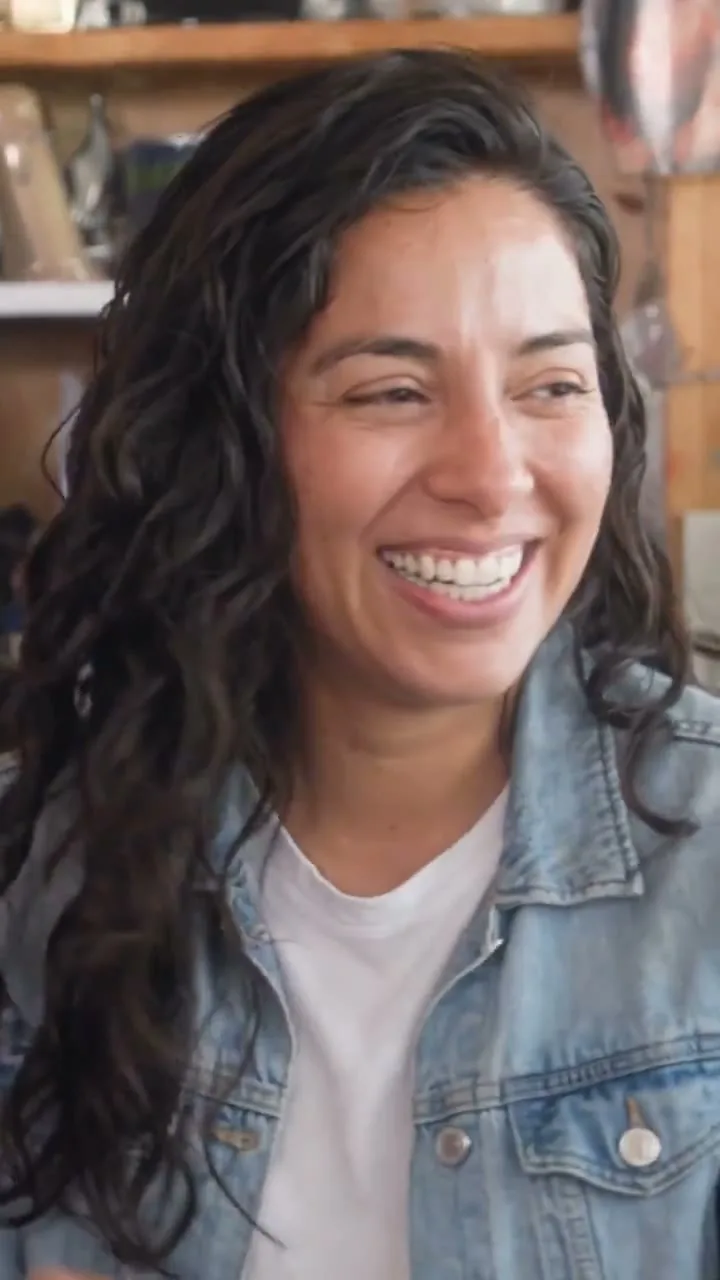
Classic
Start here for one person's spotlight. The familiar desk-band setup keeps the idea easy to read.
Use your own portrait as lead; leave the supporting slots blank for fictional reference musicians.
Try Classic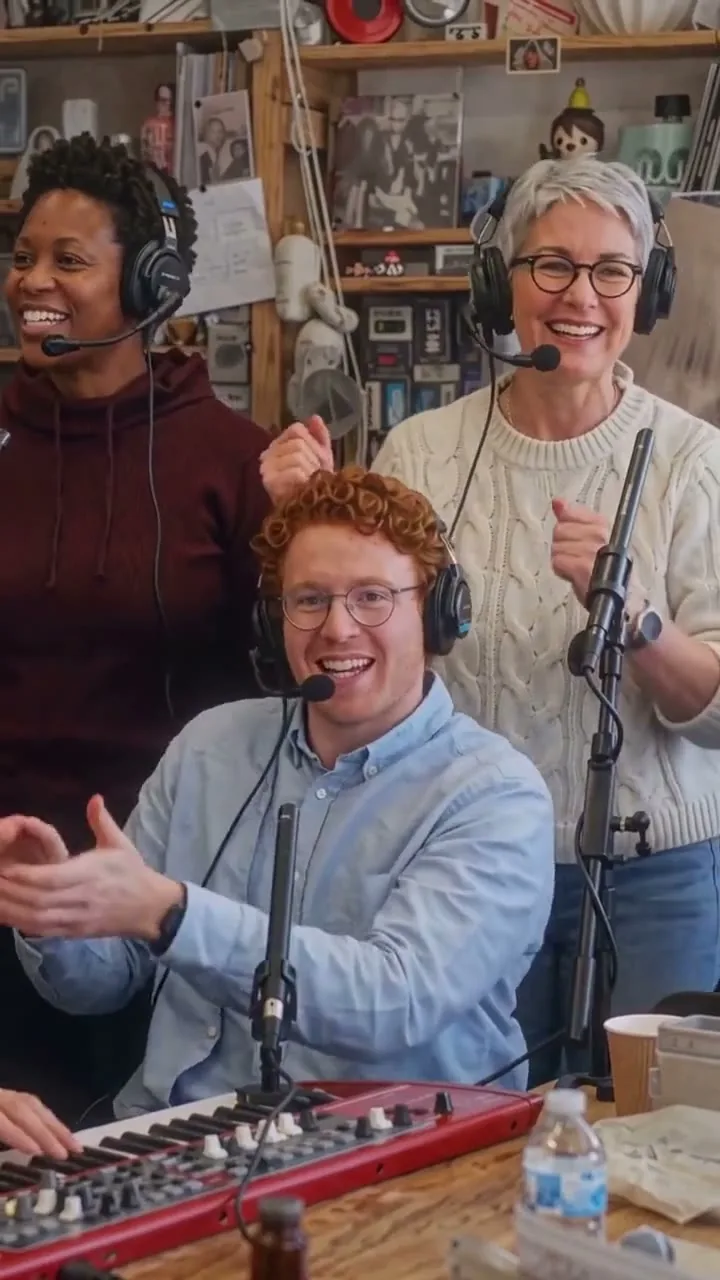
Office
A casting direction for coworkers who would never normally share a stage. Familiar work clothes make the joke personal.
Put the willing team member in the lead, then assign colleagues to keys, sax or backing vocals.
Try Office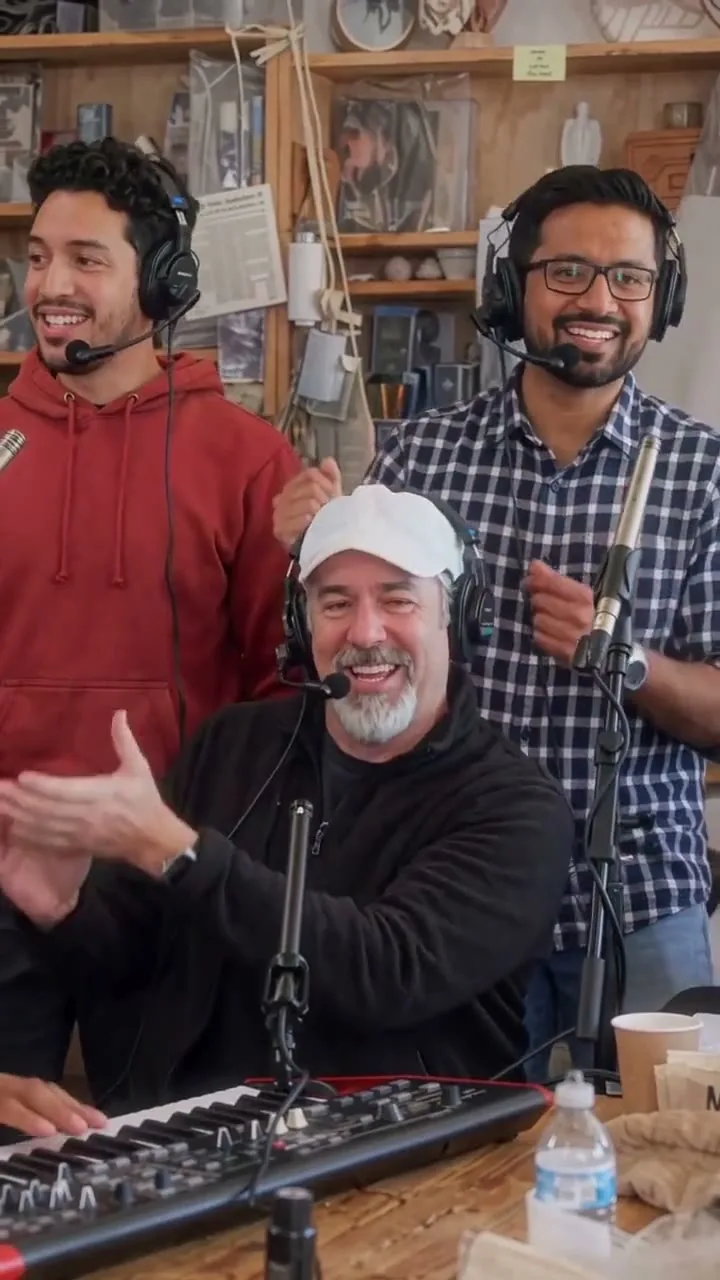
Friends
A direction for the group chat, a birthday greeting or consenting adult family members. Give the person you are celebrating the close-up.
Cast a friend in the sax role for a second featured face, or fill all four optional supporting slots.
Try FriendsWatch the example gallery with sound if the musical delivery matters to your choice. All three presets follow the desk-band concept. Their labels alone are not evidence of a specific instrument arrangement or a distinct musical genre. The finished output follows the configured reference, with variation in generated people and motion.
The same five role slots in every preset
Pick the preset for the idea, then assign your people to the roles. You do not need five photos to use any of the options. The interface accepts one required lead and four optional supporting portraits, with one person in each photo.
| Photo slot | Required? | Role in the performance |
|---|---|---|
| Lead performer | Yes | Featured side close-up and laughing close-up |
| Keyboard player | Optional | the musician seated at the red keyboard |
| Sax player | Optional | the musician playing the gold saxophone in the solo shot |
| Left backing singer | Optional | the backing singer on the viewer's left |
| Right backing singer | Optional | the backing singer on the viewer's right |
Leave a role blank to keep its fictional reference musician. The presets do not have separate three-person or five-person limits. Filling the lead and sax slots can be enough for a two-person joke, while a full cast uses all five positions. Sending the same photo to several supporting slots is not necessary to fill out the room.
The role map tells the model who belongs where. It does not lock identity through every cut or guarantee that one person never drifts into another position. For file limits and how to upload separate portraits, see casting in the tutorial.
Give the strongest portrait the close-up
The lead is the most prominent choice because that person appears in both the side close-up and the laugh. Use the clearest, most recognizable portrait of the person you want to feature. For a birthday greeting, that usually means the consenting adult being celebrated; for a team joke, pick the willing colleague whose expression will make the group smile.
The sax role is useful when you want another participant to receive a featured moment. Keyboard and backing roles complete the ensemble, so use them for people who are happy to be part of the room rather than needing equal close-up time. The slot names describe the intended part; they are not adjustable screen-time controls.
Same photos, another preset: what changes?
Switching presets selects that preset’s configured performance reference and soundtrack. It does not change the role count, offer a different file type or add an audio-upload field. You are still making an approximately 19-second vertical desk-band clip. The format specification lists the common output controls and limits.
A new generation also introduces its own variation. If you switch a preset and change several portraits at once, it becomes harder to tell which input influenced the result. For a useful comparison, keep your portraits and assignments consistent, change the preset, and review the full performance. Expect another take, not an editable version of the previous file.
Reconsider the choice if you need something the template cannot do: equal close-ups for every person, a custom song, or a different video length. Choosing Office instead of Friends will not add those controls. For a formal or public project, watch an actual result with your intended audience in mind before deciding it fits.
Plan the number of takes
Changing a completed video's preset requires a new attempt. Each attempt uses 10 purchased credits, regardless of which preset or how many supporting roles you fill. For current prices and attempt counts, see the credit-pack table.
A larger pack gives you more attempts, not more template controls. Compare current pricing when you are ready to purchase, or follow the photo-to-video tutorial for the full workflow. If you have chosen your lead and direction, open the generator and select Classic, Office or Friends there.